Image editing
Replace a Product Image Background: Gray to Pale Blue Studio
Upload a mug image on gray, request a pale blue studio background, and compare the actual result with the source. Check the mug shape, handle, and shadow before use.
Suppose you already have a usable image of a mug and only want a pale blue background. Starting with the existing image lets you ask for that change directly. The important part is checking whether the mug itself stays usable afterward.
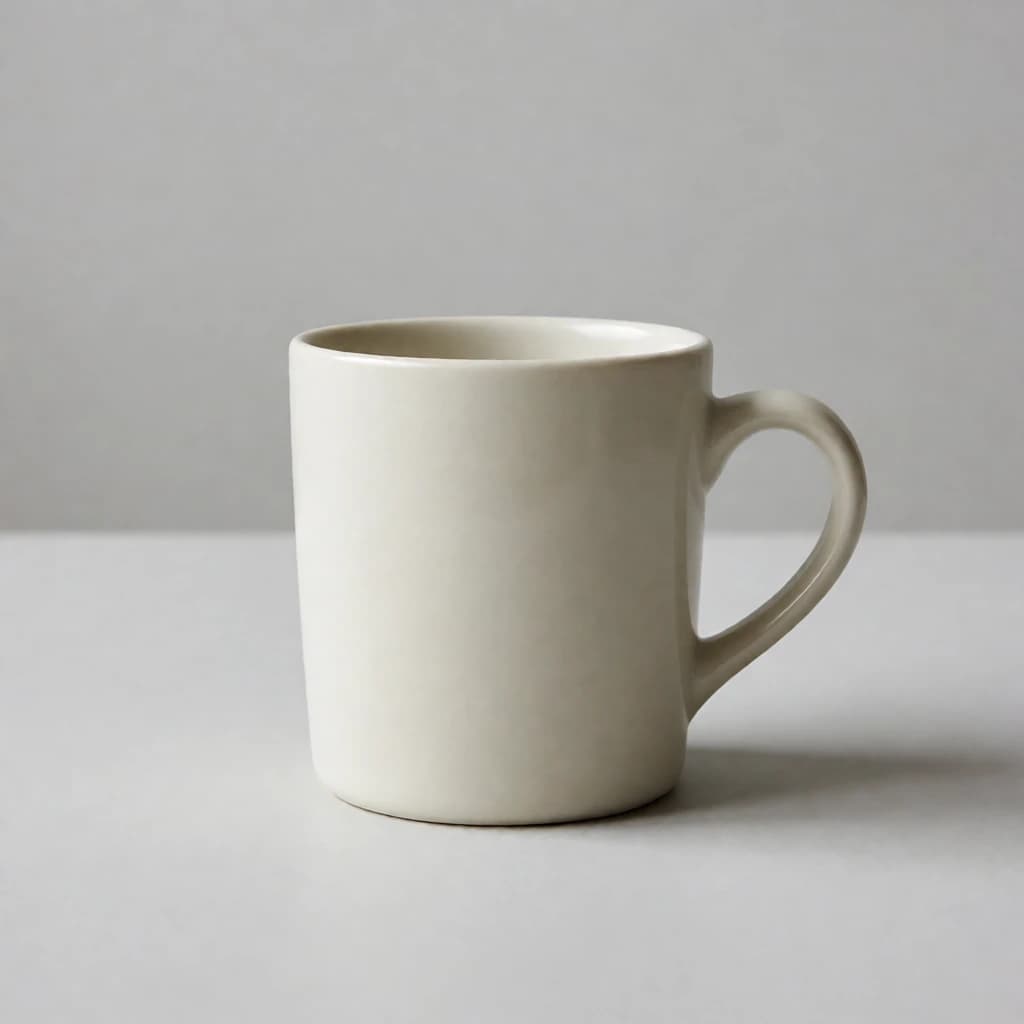
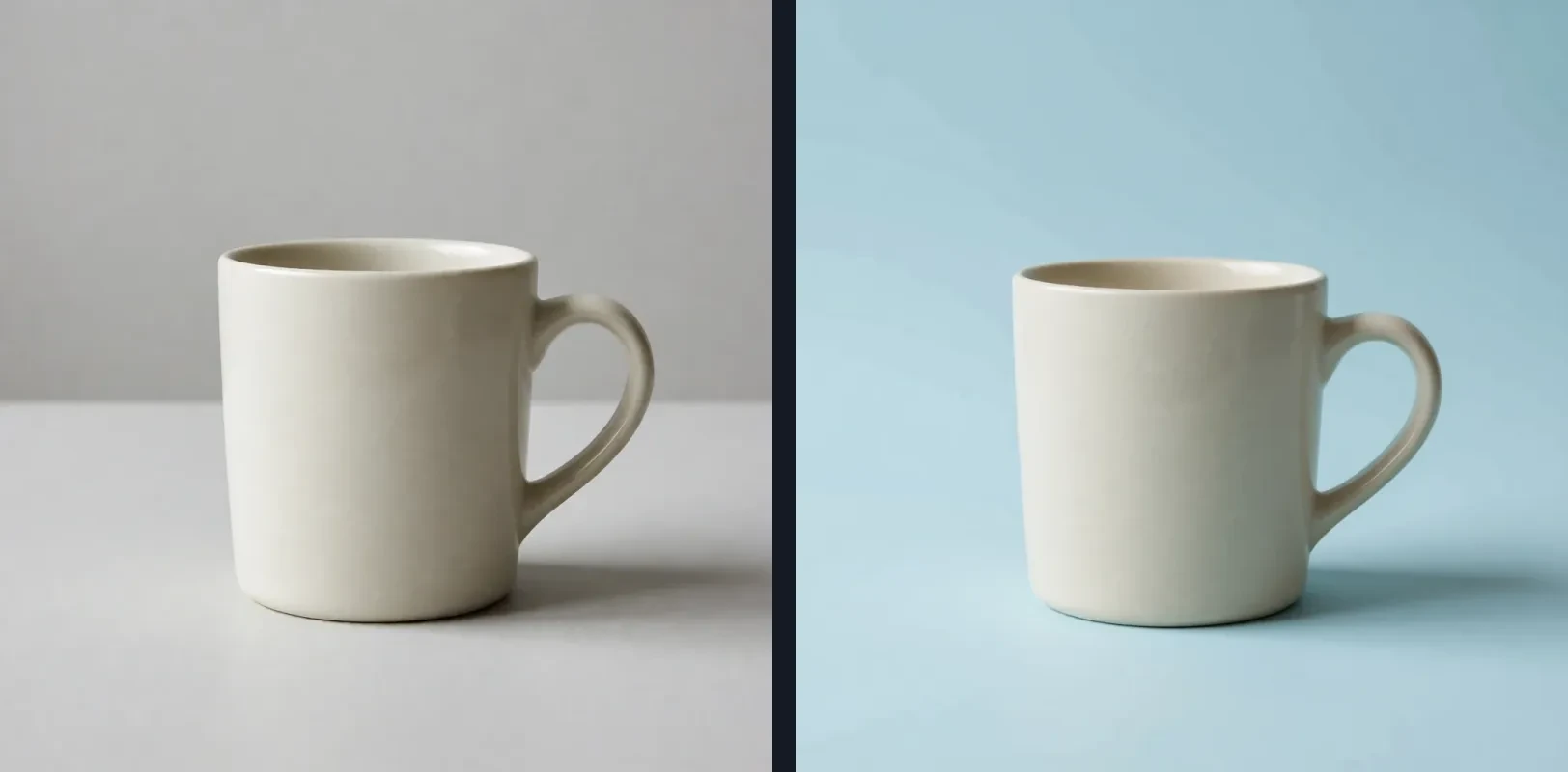
The two images below show one original and one edited result. They document what happened in this example, not what every request will produce. For a real product listing, compare the output with a photograph of the actual item.
1. Check whether the source image is suitable
The starting image has one off-white ceramic mug on a simple gray surface. Its cylindrical body, elliptical rim, right-side handle, and base are visible. That makes changes to the subject easier to spot. A partly hidden or blurred object will be harder to judge after an edit.
Write down what should stay: one mug, an off-white body, a single curved handle on the right, and contact with the tabletop. A short checklist gives you something concrete to compare with the output.
2. Describe one change and the details to preserve
Open the image editor, upload the original, choose Background, and select Studio as an editable starting point. Replace the preset wording with the color you actually want. This example uses a square source and leaves the output ratio on Closest to original.
The instruction asks for a pale blue studio background with soft lighting. It also names the mug details to preserve. Changing the background, the mug material, the camera angle, and any text in the same request would make the outcome harder to evaluate.
Replace the background with a pale blue studio background and soft lighting. Preserve the off-white ceramic mug’s shape, handle, color, and position as closely as possible.
Practical note:“Preserve as closely as possible” is an instruction to the model, not a guarantee that the object will remain identical.
3. Compare the result with the original
The background is pale blue, and the mug remains the only subject with its handle on the right. But the body looks wider, and the bottom edge, handle curve, and shadow differ from the original. A successful background change does not prove that the product shape was preserved precisely.
Inspect the image at two sizes. At a small size, ask whether the subject is clear in its intended placement. At full size, inspect the rim, handle joints, contact shadow, and any labels or lettering. Those details matter more than a pleasing first impression.
4. Decide whether the image fits its use
As a color or layout reference, this result communicates the pale blue direction. As the main photo for an actual product, it would need closer comparison with the item being sold. A changed handle, rim, package outline, or logo can make the image misleading.
Review the output at the size where people will see it, then zoom in for shape, surface, and text. If product accuracy is essential, use a photo of the real item or a more controlled editing workflow.
| Check | What this example shows | Decision |
|---|---|---|
| Background | Pale blue with one clear subject | Useful as a visual direction |
| Mug and handle | Shape and proportions differ | Compare with the real item before selling |
| Text and labels | No label to verify in this source | Check every word when present |
| Shadow | Position and intensity changed | Review against the intended layout |
5. Pick the right image for the next edit
If the background is merely too saturated, you can use Edit this result and ask for a lighter blue. Each additional edit starts from the current result, so changes to the subject may accumulate.
If the mug itself has drifted too far, restore the original and make a narrower request. Undo last step returns to the previous input. Download a result you want to keep: refreshing or leaving the page clears the editor history.
- Only the background needs tuning: continue from the result and recheck the subject.
- The subject changed too much: return to the original and retry.
- The result fits: download it and keep the source for comparison.
6. Know the current limits before uploading
The editor accepts still JPG, PNG, and WebP images up to 3 MB. Its White preset produces a white background, not transparency. Brush masks, transparent cutouts, and exact subject locking are not available in this editor.
Starting an edit sends the source image and instructions to the AI service. Use images you have permission to submit, and consider whether private customer or unreleased material is suitable for that processing.