Avatars
Make a Social Avatar That Survives a Circular Crop
Choose a character and style, simplify the background, and check facial details and readability at small sizes.
Most people first see an avatar in a small circle: a comment, a message list, or a profile icon. An image that looks polished full-screen can lose its expression and outline at that size. Start with the face and background, then decide which extra details are useful.
This guide describes a fictional creator. The current tool generates characters from text; it does not accept selfies or guarantee a likeness of a real person. Treat the output as a virtual image, not evidence of someone's identity.
1. Choose a few recognizable features
Start with three to five visible traits: short hair, round glasses, a slight smile, and a dark shirt. Each is easy to check and keep in later revisions. A role or personality can guide the idea, but it should not replace an appearance description.
Translate 'friendly creator' into an expression such as 'a slight smile, looking toward the camera.' Avoid asking for serious, playful, mysterious, and innocent at once. You do not need to include a real name, contact information, or other private details in the prompt.
2. Pick one style before refining the expression
The avatar page starts with realistic styling, and you can change it. For an anime avatar, select anime and keep the wording consistent. For a 3D mascot, avoid simultaneously demanding photographic skin texture. Compare separate directions rather than mixing all of them in one request.
Keep the main character traits when comparing styles, but expect facial features, clothing, or apparent age to change. The tool does not lock identity. For a long-term brand avatar, choose a final file and save it instead of regenerating the character whenever you need it.
| Use | Direction to try | Priority |
|---|---|---|
| Everyday virtual profile | Realistic or anime | Expression, contrast, circular crop |
| Original character profile | Anime | Hair, accessories, recognizable outline |
| Tool or community mascot | 3D | Simple silhouette at small sizes |
3. Start square and leave room around the head
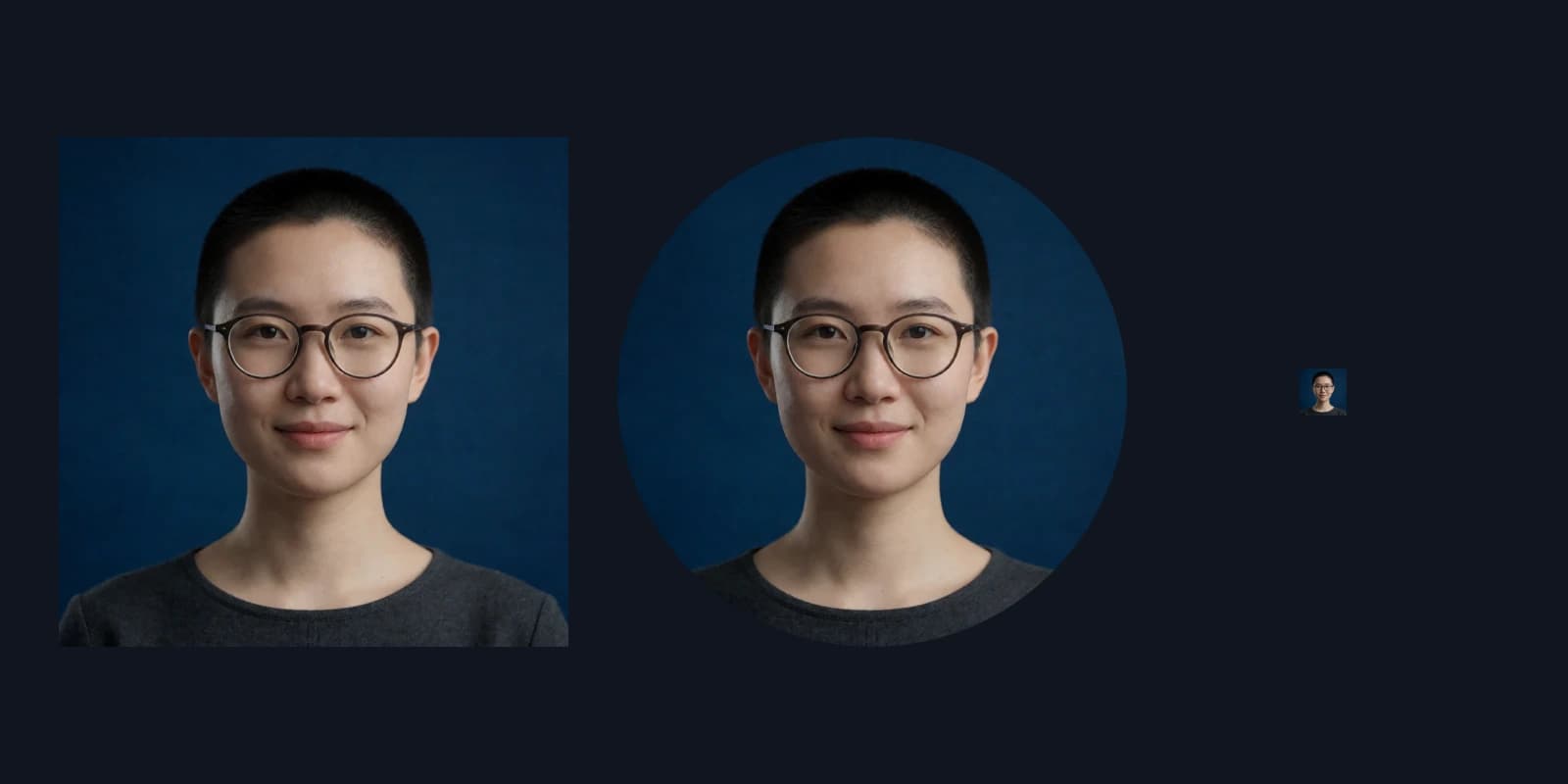
Choose 1:1 with a front-facing head-and-shoulders view. Keep hair, ears, and shoulders away from the edges. The default is close-up; if the framing stays too tight, try centered composition on the avatar page and explicitly request space above and beside the head.
The example uses a plain dark blue background so the face and glasses are easier to separate. Check face size and placement before adding a detailed scene.
A fictional creator avatar, short hair, round glasses, slight smile, dark grey shirt, front-facing head-and-shoulders view, room above and beside the head, plain dark blue background, clear separation between face and background, realistic style, no text

4. Test the circular crop and a small preview
After downloading, preview a circle in an external editor; the generator does not provide a circular-crop preview. Cover the square corners and inspect hair, earrings, and shoulders. If an essential feature sits in a corner, revise the crop or choose another version before uploading.
Also reduce the preview to something like 48 pixels across. This is a useful inspection size, not a universal platform requirement. If the glasses disappear into the background or the expression is unreadable, simplify the background and improve the outline rather than adding small decorations.
5. Inspect facial details and accessories at full size
Check both sides of the glasses, the direction of the pupils, teeth, and earrings. A face can look convincing while a glasses arm passes through hair or the accessories differ unexpectedly. An avatar with a hand gesture also needs a finger check. If the gesture is not essential, a head-and-shoulders view without hands is simpler.
- Eyes: coherent gaze and sensible pupils.
- Glasses: plausible lens sizes and connected bridge and arms.
- Mouth: a natural expression without repeated or blurred teeth.
- Accessories: sensible counts, placement, and connections.
- Background: no extra faces, unreadable lettering, or distracting bright spots.
6. Save the chosen version instead of relying on regeneration
Keep the square original, cropped version, prompt, and settings. Start from the original when preparing a new platform's crop, rather than repeatedly resaving compressed copies. Check the target platform's current file and size requirements when uploading.
For brand or commercial use, check for unauthorized marks, recognizable protected characters, or another person's likeness. A realistic virtual avatar should also be presented in a way that does not mislead people into believing it is a particular real person's photograph.