Prompt basics
Write a Text-to-Image Prompt You Can Actually Revise
Build a ceramic-mug scene one decision at a time, then learn which part of the prompt to change when the result misses the brief.
A prompt such as 'a beautiful mug' can produce an image. It does not give you much to work with when the image feels wrong. Is the mug too small, the handle the wrong shape, or the background too busy? A useful prompt makes those decisions visible, so the next revision has a specific purpose.
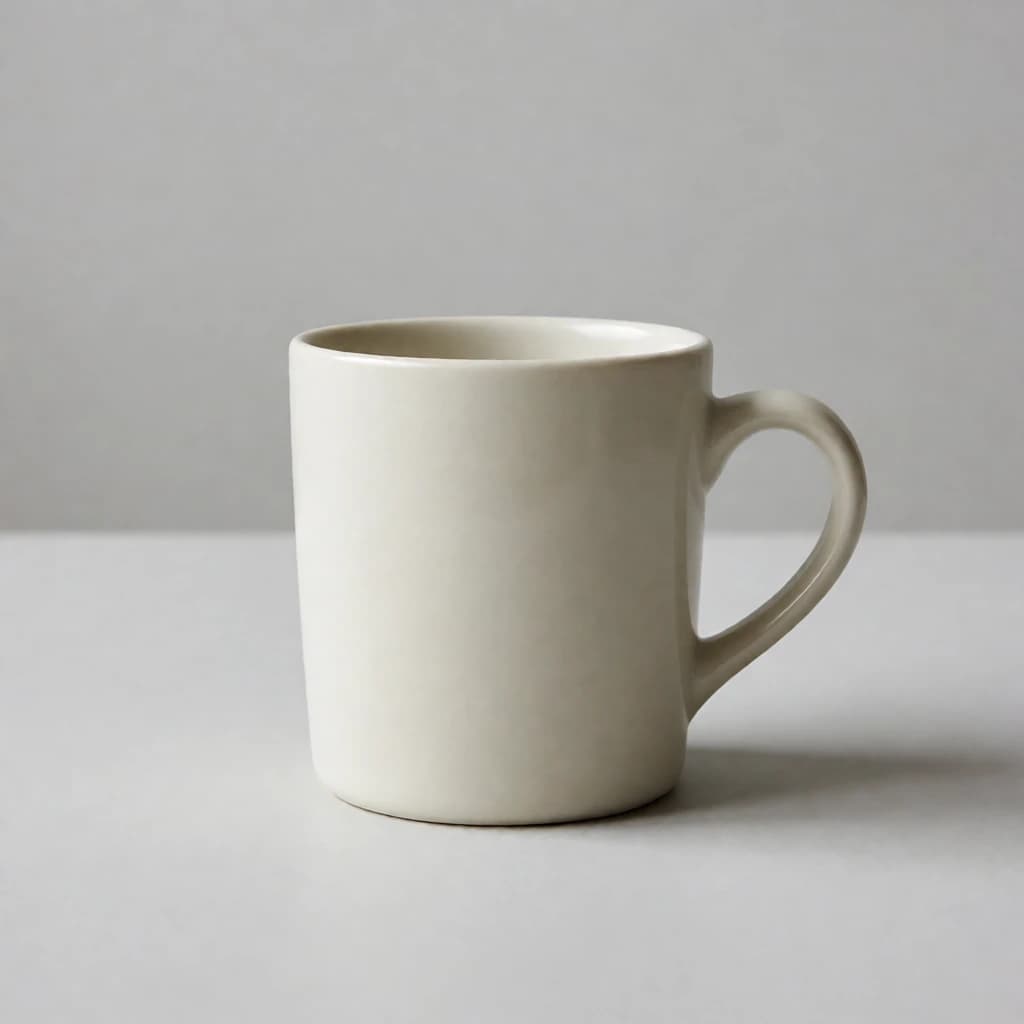
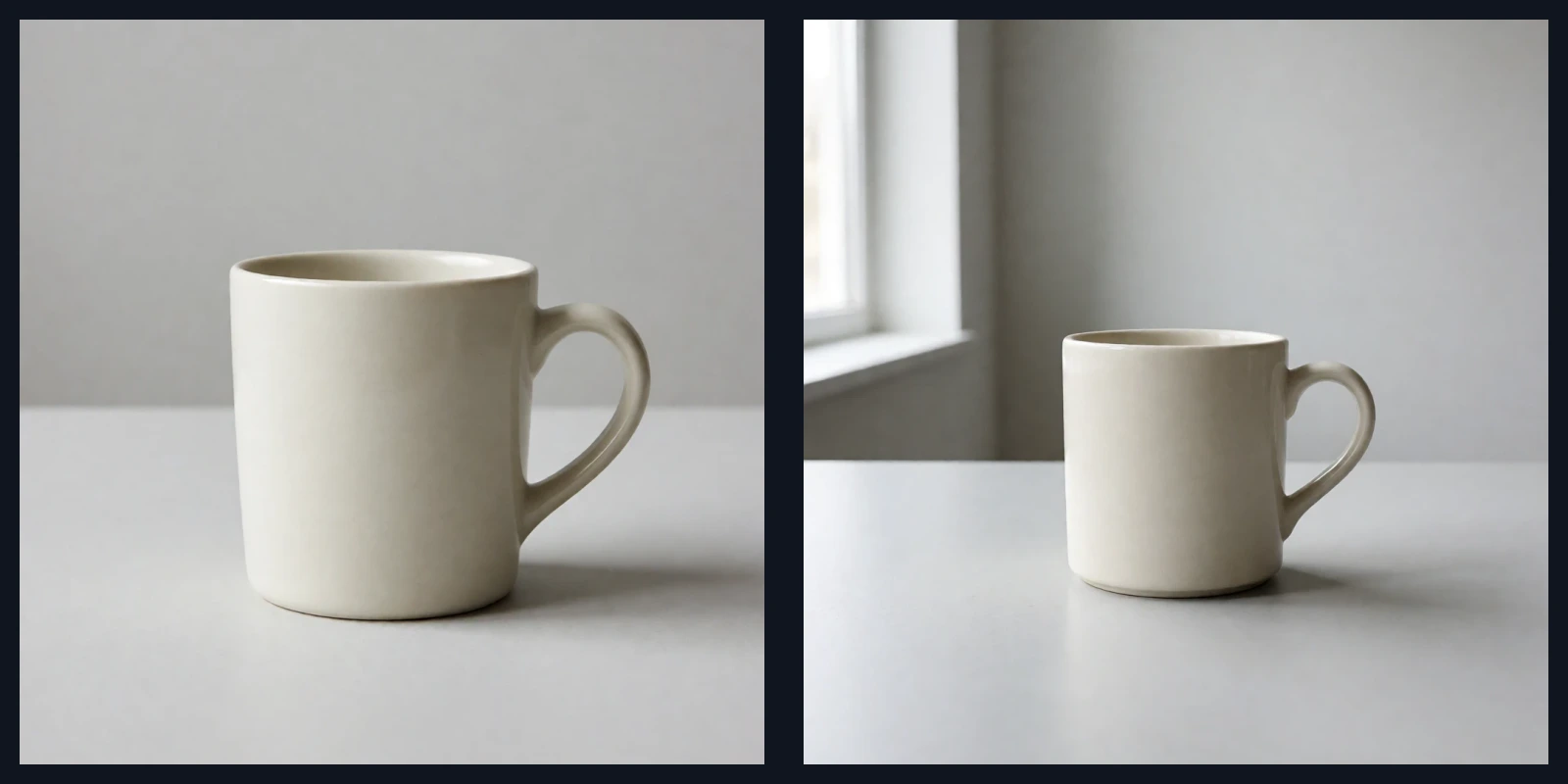
This guide starts with one ceramic mug and records two actual generations. The comparison shows this pair of outputs; subject size, background, and details can also vary between requests. Build a simple scene first, then change one part at a time without treating every difference as the effect of one phrase.
1. Decide where the image will appear
A product-list concept needs a clear object. An article cover may need more of the surrounding scene. Before writing the prompt, make a short brief for yourself: 'A square illustration with one mug as the main subject and a quiet background.' You do not have to paste the entire brief into the generator; use it to decide which results fit.
GencraftApp offers 1:1, 16:9, and 9:16. Square works for square placements, landscape for horizontal banners, and portrait for vertical artwork. The ratio changes the canvas, but does not reserve a title area. Describe the empty space you need and check whether the result leaves enough room.
2. Replace praise with visible details
State what the object is, how many there are, its material, and its shape. 'One ivory ceramic mug with a cylindrical body and a curved handle on the right' gives you more to check than 'premium, elegant, beautiful.' Each detail can become a question when you review the image.
Then describe the setting and placement. Start without books, flowers, food, or other props. Once the mug itself is usable, you can add a setting. Otherwise you are trying to fix both the object and a crowded tabletop at the same time.
One ivory ceramic mug, cylindrical body, one curved handle on the right, standing in the center of a light grey tabletop, plain light grey background, soft lighting, realistic photography, no other objects, no text
3. Keep the controls and the wording consistent
The general generator includes style, color, lighting, and composition controls. If the prompt asks for a photograph, an anime style introduces another direction. If you want a view from the side, a top-down composition conflicts with it. Avoid giving the generator two opposing instructions for the same decision.
You do not need to select every option. When investigating a lighting phrase, leave the lighting control at its default so it does not introduce a separate request. The following settings are a starting point for the mug, not a recipe that guarantees a result.
| Control | Starting choice | Reason |
|---|---|---|
| Ratio | 1:1 | Enough space to inspect a single object |
| Style | Realistic | Matches the photography prompt |
| Color and lighting | Default | Let the text supply the initial description |
| Composition | Centered | Matches the placement on the table |
4. Change the lighting without changing the whole scene
If the shape is useful but the lighting is flat, keep the subject and background. Replace 'soft lighting' with 'soft daylight from a window on the left, a faint shadow extending to the right.' Leave the mug color, table material, and ratio alone for this attempt.
Generation also varies between requests. A difference between two images cannot all be attributed to the sentence you changed. If the handle changes too, record that. The purpose is to find a usable direction, not to prove that one phrase always creates a particular effect.
In this pair, the right image adds a window frame and gives the mug a smaller share of the canvas. Although the wording mainly changes lighting, the output also changes the setting and subject size. Record those changes instead of describing the result only as better light.
One ivory ceramic mug, cylindrical body, one curved handle on the right, standing in the center of a light grey tabletop, plain light grey background, soft daylight from a window on the left, a faint shadow extending to the right, realistic photography, no other objects, no text
5. Revise the part that caused the problem
Describe the problem in plain words: 'The mug is too small,' 'There are extra props,' or 'There are two handles.' Choose the one issue that most affects the intended use. For a larger subject, try 'the mug fills most of the frame, with the full body visible.' For a busy background, remove background objects rather than adding more quality adjectives.
- Wrong count: put the number near the beginning and simplify other objects.
- Unwanted crop: request the complete object and check for a conflicting close-up setting.
- Mixed style: keep one main style and remove incompatible photography or painting requests.
- Unreliable lettering: add accurate titles in an external editor instead of depending on generated text.
6. Check both the small view and the details
First reduce the image to its intended display size. Is the subject clear, and does the background compete with it? Then zoom in: does the rim form a sensible shape, does the handle connect to the body, and does the shadow fit the object? These checks answer different questions.
Save the final prompt and controls with a versioned filename such as mug-01. The record gives you a starting point next time. Repeating those settings does not guarantee the same image, so keep the original file too.
- Check readability at the planned display size.
- Inspect edges, connections, reflections, and repeated structures.
- Add and proofread any text in an external editor.
- Keep the prompt and settings; hold back results with unresolved defects.